Quick Links
Amazonis the industry leader for plenty of reasons. One of them is because it includes several useful features for youer shopping experience, including wishlists. You fill these lists with anything on Amazon that you’re interested in. Then, you can share the collection with other people, and they can get them for you.
It is like a digital Christmas list, except instead of sending it to Santa Claus, you’re giving it to your friends, family, or anyone else who may want to buy you things. It can be good for birthdays, holidays, or if you just have generous friends. Here is how you make one and allow others to see it.

How To Make An Amazon Wishlist On Desktop
The first thing you need to make an Amazon wishlist is an Amazon account. But you don’t need a Prime account, as you can make wishlists on a standard one. When you’re signed in to your account, hover over the’Account & Lists’tab in the top right of the main page.
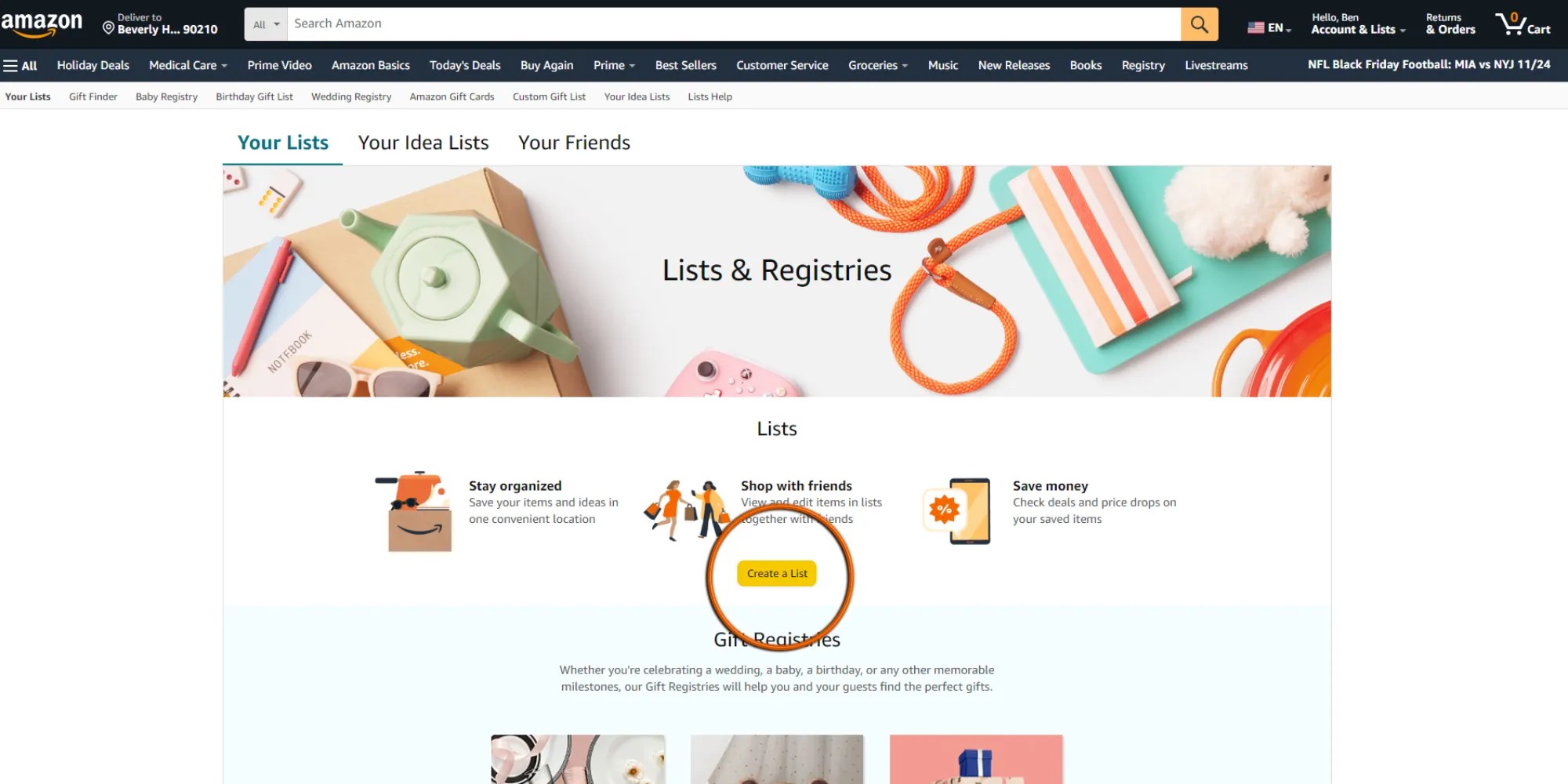
On the left side of the menu that pops up, you will seea ‘create a list’ option. Press this to be taken to a new page called List and Registries.

This page also has a’create a list' button that you must click.
Then, it prompts you to name your list. Once you do, press’create list.‘Now, your list is created.
How To Make An Amazon Wishlist On The Amazon Mobile App
To create a wishlist on the Amazon app, you, of course, need the app and an Amazon account.
Once you do, open the app and head over tothe profile tab. This is the one that looks like the top half of a person.

From there, hit the’your lists’ buttonto go to the List and Registry page. Now, tap'+ create a list’in the top right corner of the screen. This will prompt you to name the list. After coming up with something clever, hitthe ‘create list’ buttonto bring the wishlist to life.
How To Share An Amazon Wishlist
Once you’ve created your list, you may want to share it. To do that, hover over’Account & Lists’like you did to create the thing. However, this time,your list will be on the left side of the menu. So, click on it.
This takes you to a new page where your list is. From here,press the invite buttonunder its name.

This brings up the invite menu. You caneither invite people to view the list or view and edit it.
To select view and edit, you will need to make your Amazon profile public. But you may go into privacy settings to impact what people can see.

Regardless of whether you choose ‘view only’ or ‘view and edit,’ you must select how you want to share it. Youcan either create a link to paste somewhere or send the invitation through email.
Once you do, the recipient will have whatever access you gave them.

A lot of the information regarding sharing a wishlist on the Amazon mobile app is the same as on the desktop. However, to reach your list, you must click on the profile tab and tap ‘your lists’ to find your wishlist. Then, the process of inviting people is the same as on the desktop.
How To Add Things To Your Wishlist
Adding things to your watchlist is really simple. When looking at a product, veer over to the right side of the screen to see an’add to list’drop-down menu.
It’s under the ‘add to cart’ and ‘buy now’ panel. Click on the arrow to open the drop-down menu andselect your listto add the product to it.


